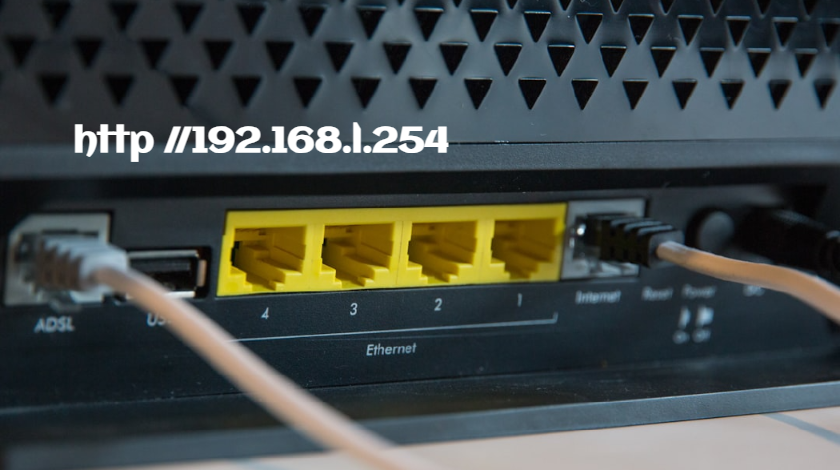
Have you ever stared at your router wondering how to change your WiFi password or update your network settings? Maybe you have searched for “http //192.168.l.254” and ended up frustrated because the page would not load. You are definitely not alone in this struggle, and I am here to help you understand everything about accessing your router and making those important configuration changes.
Let me share something from my personal experience. A few years ago, I was helping my elderly neighbor set up her new internet connection. She kept trying to access her router settings by typing what looked right on the instruction manual, but nothing worked. After about twenty minutes of troubleshooting, I discovered she was typing the letter “l” instead of the number “1” in the IP address. That single character made all the difference. This is actually one of the most common mistakes people make, and it is exactly why I wanted to write this comprehensive guide.
In this article, I will walk you through everything you need to know about accessing your router through the IP address 192.168.1.254. We will cover what this address actually means, how to properly access your router settings, common problems you might encounter, and how to configure your network for optimal performance and security. Whether you are a complete beginner or someone with a bit of technical knowledge, this guide will help you take control of your home network.
Understanding What 192.168.1.254 Really Means
Before we jump into the technical steps, let me explain what 192.168.1.254 actually is and why it matters for your home network.
This string of numbers is called an IP address, specifically a private IP address. Think of it like a street address for your router within your home network. Just like your house has a unique address so the mail carrier knows where to deliver packages, your router has an IP address so devices on your network know how to communicate with it.
The IP address 192.168.1.254 falls within a special range of addresses reserved for private networks. These addresses cannot be accessed from the public internet, which is actually a security feature. They only work within your local network, meaning only devices connected to your home WiFi or ethernet can use this address to communicate with your router.
Different router manufacturers use different default IP addresses. While many people are familiar with 192.168.1.1 or 192.168.0.1, some brands prefer to use 192.168.1.254 as their default gateway address. Popular brands that commonly use this address include certain models from Thomson, SpeedTouch, and some internet service provider branded routers.
Understanding this concept is important because your router serves as the gateway between your home network and the wider internet. Every device in your home that wants to access the internet sends its requests through this router, and the router uses its IP address to manage all this traffic efficiently.
When you type this IP address into your web browser, you are essentially asking to see the control panel of your router. This is where all the magic happens. You can view connected devices, change passwords, update security settings, and configure advanced features. Think of it as the cockpit of an airplane where the pilot controls everything.
How to Properly Access Your Router Admin Panel
Now let me walk you through the exact steps to access your router settings. I will make this as simple as possible, even if you have never done anything like this before.
First, make sure your computer or mobile device is connected to your router. You can be connected through WiFi or with an ethernet cable. Both methods work perfectly fine, though I personally prefer using a wired connection when making important configuration changes because it is more stable.
Open your web browser. This can be Chrome, Firefox, Safari, Edge, or any other browser you normally use. You do not need anything special here. I have successfully accessed router settings using every major browser without any issues.
Here comes the critical part where many people make mistakes. In the address bar at the top of your browser, where you normally type website names like google.com, you need to type the IP address exactly as follows: 192.168.1.254
Notice that I wrote the NUMBER one, not the LETTER l. This is absolutely crucial. The correct address uses the digit 1, but because of how some fonts display characters, it can look like the lowercase letter L. If you type “http //192.168.l.254” with the letter L, your browser will not find your router. This single mistake probably accounts for half of all router access problems I have encountered over the years.
You do not actually need to type “http://” before the IP address in most modern browsers. They will automatically add it for you. Just typing 192.168.1.254 should work perfectly fine.
After typing the correct address, press Enter on your keyboard. If everything is working correctly, you should see a login page appear. This page might look different depending on your router brand, but it will typically ask for a username and password.
Now comes another common stumbling block. You need to enter the router admin credentials, which are different from your WiFi password. Many people confuse these two things. Your WiFi password is what you use to connect devices to your wireless network. Your router admin credentials are what you use to access the router settings themselves.
If you have never changed these credentials, you will need to use the default username and password that came with your router. These are usually printed on a sticker on the bottom or back of the router itself. Common default combinations include “admin” for both username and password, or “admin” for username and “password” for the password. Some routers use “admin” and leave the password field blank.
If you cannot find the sticker and the common defaults do not work, you can search online for your specific router model default credentials. There are databases available that list default passwords for virtually every router model ever made.
Once you enter the correct credentials and click login or press Enter, you should be taken to your router admin dashboard. Congratulations! You have successfully accessed your router settings.
Troubleshooting Common Router Access Problems
Even with perfect instructions, sometimes things do not go as planned. Let me share the most common problems people encounter when trying to access their router and exactly how to fix them.
The first and most common issue is the page simply not loading. You type in the IP address, press Enter, and the browser just sits there thinking, or you get an error message saying the page cannot be reached. I have encountered this situation countless times, and there are several possible causes.
First, double check that you typed the correct IP address using the number 1, not the letter L. I cannot stress this enough because it happens so frequently. Look very carefully at what you typed and compare it character by character to 192.168.1.254.
Second, verify that 192.168.1.254 is actually your router IP address. Not all routers use this address. To find your actual router IP address on a Windows computer, open the Command Prompt by searching for “cmd” in the start menu. Then type “ipconfig” and press Enter. Look for “Default Gateway” under your active network connection. That is your router IP address. On a Mac, go to System Preferences, click Network, select your active connection, and click Advanced. Under the TCP/IP tab, you will see your router address listed as “Router.”
If you confirmed the IP address is correct but the page still will not load, try using a different web browser. Sometimes browser extensions or cached data can interfere with accessing router pages. I once spent an hour troubleshooting only to discover that a security extension was blocking access to local IP addresses.
Another solution is to disable your VPN if you have one running. VPNs can sometimes interfere with accessing local network devices. Simply turn off your VPN temporarily, try accessing the router again, and you can turn the VPN back on after you finish making changes.
If you are getting a username and password error even though you are certain you entered the correct credentials, your router password might have been changed previously. If you changed it yourself and forgot what you changed it to, or if someone else set up your router, you might need to reset the router to factory settings. I only recommend this as a last resort because it will erase all your custom settings.
To reset most routers, look for a small recessed reset button, usually on the back of the device. You will need something thin like a paperclip to press and hold this button for about 10 to 15 seconds while the router is powered on. The lights on the router will typically flash, indicating the reset is happening. After this, all settings return to factory defaults, including the admin password, and you can use the default credentials printed on the router.
Some people experience issues because they are trying to access the router through a guest network. Guest networks are intentionally isolated and often do not allow access to router settings for security reasons. Make sure you are connected to your main network, not a guest network.
Navigating Your Router Settings and Making Important Changes
Once you successfully log into your router admin panel, you might feel overwhelmed by all the options and technical terms you see. Let me guide you through the most important sections and settings you will want to know about.
Most router interfaces have a main dashboard or home page that displays basic information about your network. You can usually see how many devices are currently connected, your internet connection status, and maybe some graphs showing network usage. This is useful for getting a quick overview of your network health.
One of the first things I always recommend changing is your WiFi network name, also called the SSID. This is the name that appears when people search for available WiFi networks. By default, router manufacturers use generic names like “NETGEAR” or “TP-Link” followed by some random characters. Changing this to something personalized makes it easier to identify your network and can even add a bit of fun. I have seen network names ranging from creative puns to pop culture references.
To change your SSID, look for a section labeled Wireless Settings, WiFi Settings, or something similar. The exact location varies by router brand, but it is usually pretty easy to find. Click on that section, find the field labeled SSID or Network Name, type in your desired name, and save the changes. Your router might restart, and you will need to reconnect all your devices using the new network name.
Right next to the SSID setting, you will find your WiFi password or passphrase. This is another critical setting you should definitely change if you are still using the default password that came with your router. Default passwords are often printed right on the router, which means anyone who has physical access to your device can see your password. Not exactly secure.
When creating a new WiFi password, make it strong but memorable. I recommend using a passphrase that combines random words rather than trying to create something with lots of special characters that you will forget. Something like “PurpleDolphin$SwimFast99” is much easier to remember and type than “xK9$mP2&qL” but still very secure.
Another important setting is your security type or encryption method. This should be set to WPA2 or WPA3 if your router supports it. These are currently the most secure encryption standards for home WiFi networks. Avoid using WEP or WPA, as these older standards have known vulnerabilities that hackers can exploit relatively easily.
Many routers offer a guest network feature, which I think is fantastic for security. A guest network allows visitors to access your internet without giving them access to your main network where your personal computers, phones, and smart home devices live. When you enable a guest network, you can set a separate name and password for it. I always recommend using this feature if you frequently have visitors who need WiFi access.
You should also explore the firmware update section of your router. Firmware is the software that runs on your router, and manufacturers regularly release updates to fix security vulnerabilities and improve performance. Some routers check for updates automatically, but many require manual checking. I make it a habit to check for firmware updates every few months, similar to how you would update your computer or phone.
Security Best Practices for Your Home Network
Let me share some crucial security tips that will help protect your home network from potential threats. In my years of helping people with their networks, I have seen too many households with completely unsecured routers, essentially leaving their digital front door wide open.
The absolute first thing you should do after accessing your router for the first time is change the default admin username and password. This is separate from your WiFi password and equally important. If you leave the default admin credentials in place, anyone on your network could potentially access your router settings and make changes. There are public databases listing default router passwords, so hackers specifically target routers with unchanged credentials.
To change your admin password, look for a section called Administration, System, or Management. The exact name varies by manufacturer, but there should be an option to change the admin password. Choose something strong and unique that you do not use for any other account. Write it down and store it somewhere safe. I keep mine in a password manager, which I highly recommend for managing all your important passwords.
Enable the highest level of WiFi encryption your router supports. As I mentioned earlier, this should be WPA2 at minimum, or WPA3 if available. This encryption scrambles the data transmitted over your WiFi network so that even if someone intercepts it, they cannot read it without the password.
Consider disabling WPS if you do not use it. WPS stands for WiFi Protected Setup, and it allows devices to connect to your network by pressing a button on the router instead of entering the password. While convenient, WPS has known security vulnerabilities. Unless you specifically need this feature, turning it off removes a potential entry point for attackers.
Regularly review the list of devices connected to your network. Most routers have a section showing all currently connected devices. If you see any unfamiliar devices, it could indicate that someone has accessed your network without permission. This is why having a strong WiFi password is so important.
Keep your router firmware updated, as I mentioned earlier. Security vulnerabilities are discovered regularly, and manufacturers release firmware updates to patch these holes. Running outdated firmware is like leaving your house with broken locks.
Conclusion
Accessing and managing your router through 192.168.1.254 might seem intimidating at first, but as you have learned from this guide, it is actually quite straightforward once you understand the basics. The most important thing to remember is using the correct IP address with the number 1, not the letter L, as this simple typo causes the majority of access problems.
Taking control of your router settings allows you to customize your network, improve security, and troubleshoot problems independently. Whether you are changing your WiFi password, setting up a guest network, or updating firmware, these tasks become simple once you know where to find them.
I encourage you to take the time to explore your router settings and implement the security best practices I have outlined. Your home network is the gateway to all your online activities, and securing it properly protects your personal information, financial data, and privacy. The few minutes you invest in properly configuring your router will provide long term benefits and peace of mind.
Remember that technology can be frustrating sometimes, but with patience and the right information, anyone can successfully manage their home network. If you encounter problems, work through the troubleshooting steps systematically, and do not hesitate to search for help specific to your router model.
Frequently Asked Questions
Q: What is the difference between 192.168.l.254 and 192.168.1.254?
A: The difference is the third character. The incorrect version uses the lowercase letter L, while the correct version uses the number 1. This is an extremely common typo that prevents people from accessing their router. Always use the number 1 in the IP address: 192.168.1.254.
Q: Why can I not access 192.168.1.254 even when typing it correctly?
A: There are several possible reasons. First, this might not be your router actual IP address, as different models use different addresses. Check your default gateway address through your computer network settings. Second, make sure you are connected to your router network either through WiFi or ethernet cable. Third, try a different web browser or disable any VPN you might be running.
Q: What are the default username and password for 192.168.1.254?
A: Default credentials vary by router manufacturer. Common combinations include admin/admin, admin/password, or admin with a blank password. Check the sticker on your router or search online for your specific router model default credentials.
Q: Can I access my router settings from my phone?
A: Yes, absolutely. You can access your router admin panel from any device connected to your network, including smartphones and tablets. Simply open a web browser on your phone and type the IP address the same way you would on a computer.
Q: How often should I change my WiFi password?
A: For home networks, changing your WiFi password every three to six months is a reasonable practice. However, if you suspect your network has been compromised or you have shared your password with someone you no longer trust, change it immediately.
Q: What should I do if I forgot my router admin password?
A: If you changed your admin password and forgot it, you will need to reset your router to factory settings. This is done by pressing and holding the reset button on the router for about 10 to 15 seconds. Note that this will erase all your custom settings, and you will need to reconfigure everything.
Q: Is it safe to access my router settings over WiFi?
A: Yes, it is safe to access your router settings over WiFi as long as you are connected to your own secure network. However, for critical changes or firmware updates, I personally recommend using a wired ethernet connection for added stability.
Q: Why does my router page look different from what you described?
A: Router interfaces vary significantly between manufacturers and even between different models from the same manufacturer. The basic concepts and settings remain the same, but the layout and menu names might differ. Look for similar terms like Wireless, Security, or Administration.